Text to Video AI
Instant video creation from text. No more waiting for video production — type what you imagine and watch it become a full-fledged video in minutes.
Drop your photo here
or · JPG or PNG
Sign in to create
One click with Google — no password needed. New here? Your Google account creates one automatically.
Private by default · No installation · Works on mobile
 SAMPLE VIDEO
Silent preview
Northern lights dancing over a quiet fjord under a starry sky — made with Wan 2.2 Text to Video.
CreateMost Realistic Video Effect from Prompts
Simply enter your description, and the AI creates a video with lifelike animation, smooth transitions and realistic movement that closely mimics real-world scenes.
Turn Text to VideoFast and Scalable
Ideal for creators who need video at volume. Whether you produce one video or hundreds, the process stays fast and cost-effective.
Write, Don't Shoot
No camera, no crew, no stock footage. A paragraph of text is the whole production.
Models That Fit the Scene
Wan 2.2, MiniMax Hailuo and LTX-2 video engines power the generator behind the scenes.
Ready for Social
Landscape or portrait, about 5 seconds per clip — built for feeds, ads and shorts.
Models available in the generator: Wan 2.2 Text to Video · MiniMax Hailuo · LTX-2 Text to Video
How to Start with Text-to-Video
Five steps from words to video.
Write Your Text Prompt
Input a detailed description, a script, or even a few keywords that outline your video concept.
AI Processes Your Text
The AI reads your text, understanding context, tone and intent.
Instant Video Generation
Watch as the AI creates your video automatically — complete with visuals and motion.
Refine and Customize
Adjust the prompt, or change the aspect ratio and try again.
Download or Share
Download your video in the format you need, or share it directly to social media.
How to Write a Text to Video Prompt That Actually Moves
A good video prompt is a shot list, not a sentence. Four ingredients decide whether your clip looks alive or looks like a still photo that shivers.
Every text to video AI reads the same four things in your prompt: the subject, the action, the camera movement and the mood. Leave one out and the model guesses — and its guess is usually the most boring option. “A beach” gives you a postcard. “Aerial view of a turquoise tropical beach with white sand and palms, waves rolling ashore, slow drone push-in, warm afternoon light” gives you a clip you can actually post.
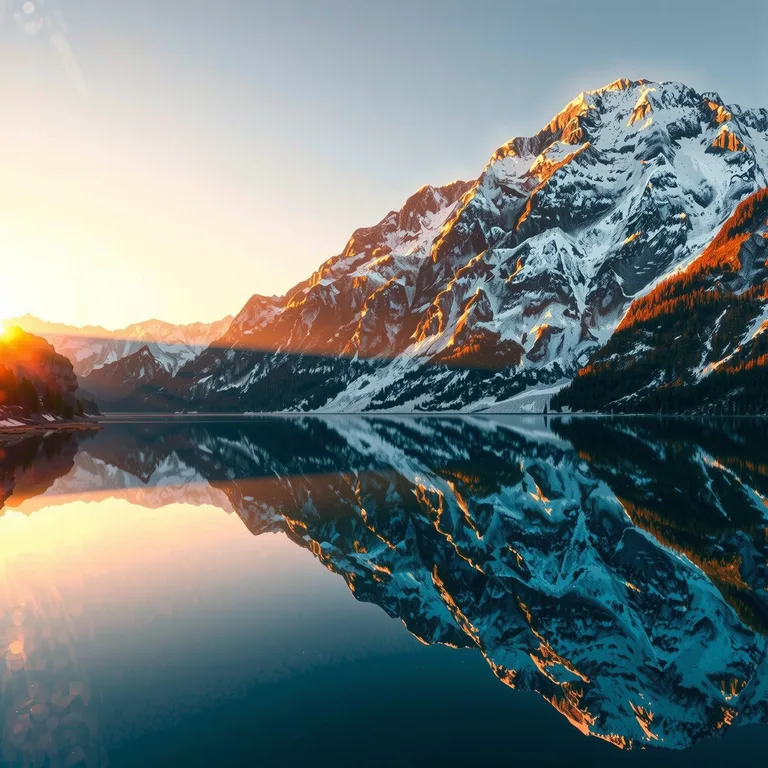
Subject first, and be specific. Name what is on screen and what it looks like: not “mountains” but “snow-capped mountains reflected in a crystal-clear alpine lake at sunrise.” The model cannot invent detail you never asked for, so the nouns and adjectives you choose are the whole art department. If the scene has a person, say what they are doing and what they are wearing; if it has a place, say the time of day and the weather. Light is part of the subject: “golden hour”, “soft mist” and “neon reflections on wet pavement” change the entire look of a clip.
One action per clip. A 5-second video holds a single beat of motion. “Cherry blossom petals drift down and float on the river, water flows gently” works because everything moves in one direction at one speed. Pack in three actions — a woman turns, waves, and walks away while the camera orbits — and the model has to split five seconds three ways; something will freeze or smear. If your idea needs more than one beat, make it a 10 or 15-second clip, or generate two clips and cut them together in an editor.
Say what the camera does. This is the ingredient most people skip, and it is the one that separates a video from an animated photo. A camera direction tells the AI video generator how the frame itself should move: slow push-in, drone shot, pan, orbit, or a locked-off static shot. Without it you get the model’s default, which is usually a slow, timid drift. With it you get intent — and intent is what makes a clip feel directed rather than accidental.
End with mood and style. A short tail such as “cinematic, photorealistic”, “warm and dreamy” or “documentary style” sets the texture of the whole clip: colour, contrast, grain, and how realistic the motion should feel. Keep it to a few words; a mood phrase is seasoning, not the meal.
Four prompts from Kanakaw’s own sample gallery, broken down so you can steal the structure:
- “Northern lights dancing over a quiet fjord under a starry sky, slow cinematic drift” — subject (aurora over a fjord), action (dancing), camera (slow drift), mood (quiet, starry night).
- “Aerial view of a turquoise tropical beach with white sand and palms, slow drone push-in” — subject (beach), camera (aerial drone, push-in); the motion is the camera’s, and that is enough.
- “Rolling lavender fields in Provence at golden hour, warm sunlight, gentle breeze moving the flowers” — subject and light do the work, the action is a single gentle motion (breeze).
- “Cherry blossom trees along a quiet river in spring, petals drifting down onto the water, soft morning light” — subject (blossom trees and a river), action (petals drifting), camera (a slow drift), mood (quiet spring morning).
When a result disappoints, change one ingredient at a time. If the motion is wrong, rewrite the action and the camera direction and leave the subject alone; if the look is wrong, change the light and mood words. Regenerating the same prompt rarely fixes anything — editing the prompt does. That is the skill an AI video maker rewards most: not longer prompts, but more deliberate ones.
Camera Movements: The Six Moves Every Text to Video Prompt Needs
The camera is a character in your clip. Pick its move before you write the rest of the prompt — it shapes everything else.
Slow push-in
The camera drifts toward the subject. Best for revealing detail and building intimacy: a face, a product, a landscape that opens up as you get closer. Try “slow push-in toward a lighthouse on a rocky coast at dusk”. Use it when the subject is the point of the clip.
Drone / aerial shot
The camera looks down or sweeps over a scene from above. Best for landscapes, coastlines, cities and anything where scale is the story. Try “aerial view of a turquoise tropical beach, slow drone push-in”. It turns an ordinary location into a travel-film opening.
Pan
The camera turns left or right across a scene. Best for showing a place in one continuous sweep — a street, a market, a mountain ridge. Try “rainy neon city street at night, reflections on wet pavement, slow pan left”. Keep the pan slow; a fast pan in five seconds feels rushed.
Orbit
The camera circles around the subject. Best for products, portraits and objects you want to show in three dimensions — a watch, a car, a dish of food. Try “orbit around a ceramic coffee cup on a wooden table, morning light”. Orbits ask the most of the model, so keep the subject still and let the camera do the moving.
Static / locked-off shot
The camera does not move at all; only the subject moves. Best for ambient scenes where motion should feel natural — rain on a window, petals on water, a candle flame. Try “cherry blossom petals drifting on a quiet river, static camera”. When in doubt, a static shot is the safest choice: it never fights the subject.
Tracking / follow shot
The camera moves with the subject, keeping it in frame. Best for walking, running, cycling and vehicles — anything with a clear direction of travel. Try “tracking shot following a cyclist along a coastal road at sunset”. Give the subject one steady speed and one direction.
Two rules cover all six moves. First, name the move in the prompt — the generator has no other way to know you wanted a drone shot instead of a static one. Second, one camera move per clip: a push-in that turns into an orbit halfway through is two moves fighting over five seconds, and the result usually looks like neither. If you need both, generate two clips and cut between them.
5, 10 or 15 Seconds? Picking Length, Resolution and Aspect Ratio
Three settings, three decisions — and each one changes what the clip costs and where it can live.
Length: match the clip to the idea. Five seconds is the default and the right choice for most text to video prompts: one subject, one action, one camera move. It is also the cheapest way to test a prompt — generate a 5-second version first, and only spend more once the idea works. Ten seconds fits a scene with a small change inside it, such as a pan that reveals a second subject, or an action with a clear beginning and end. Fifteen seconds is for the rare prompt that genuinely needs time: a slow drone flight over a landscape, or a sequence where the light or the weather shifts. Longer is not better by default; a 5-second clip that is tight beats a 15-second clip that runs out of ideas at second eight.
Resolution: 480p, 720p or 1080p. Higher resolution means a sharper image and a higher price, because the model renders more pixels for the same number of seconds. The price is set per clip, by resolution and length: at 480p a 5-second clip costs 238 credits, 10 seconds 476 and 15 seconds 713; at 720p the same lengths cost 476, 951 and 1,426 credits; at 1080p they cost 951, 1,901 and 2,851 credits. A practical rule is to draft at 720p — sharp enough to judge motion and composition, and half the price of 1080p — then render the final version at 1080p only when the clip is going somewhere it will be seen large, such as a website hero or a presentation. For a phone feed, 720p is usually all anyone will ever see.
Aspect ratio: choose for the destination, not the subject. 16:9 is the landscape standard: YouTube, a website hero, a slide deck, anything played on a wide screen. 9:16 is portrait, made for Reels, Shorts and TikTok — the clip comes out ready to post with no cropping. 1:1 is the square feed format, still the safest choice when the same clip has to work in several places at once. 4:3 and 3:4 sit in between: 4:3 for a classic, slightly boxy frame that suits interviews and product shots, 3:4 for a taller portrait that fills a phone screen without going full vertical. Pick the ratio before you create; a clip cannot be re-framed afterwards, so a 16:9 render posted to a vertical feed will arrive letterboxed and small.
Two facts that shape every choice. First, text-to-video generation on Kanakaw is a members-only feature: membership comes with any credit pack — 30 days with a monthly pack, 12 months with an annual pack. There is no free trial — every clip is paid for in credits from your balance, at the prices above, so the settings bar shows the exact cost before you create. Second, the clips are silent video: no music, no voices, no sound effects. If your clip needs audio, add music or a voiceover in any video editor after you download — a silent clip is the raw material, not the finished post.
Wan 2.2, MiniMax Hailuo and LTX-2 — and What to Make With Them
Three text-to-video models in one AI video generator, and the jobs each one is best suited to.
The video generator is powered by three video engines — Wan 2.2, MiniMax Hailuo and LTX-2 — working behind the scenes. Wan 2.2 is the engine behind the samples on this page: a solid all-rounder for realistic motion, natural light and landscapes. MiniMax Hailuo is known for smooth, cinematic movement — the kind of slow, deliberate camera work that suits mood pieces, travel clips and anything where the motion itself should feel elegant. LTX-2 is the fast engine, handy when you are iterating through several prompt wordings or working through a batch of similar clips. You do not pick an engine by name in the studio; what you control is the prompt, the camera direction, the length, the resolution and the aspect ratio — the engines do the rest.
That is where the craft lives. The same scene can look noticeably different depending on the words you choose: one prompt may handle water beautifully, another may keep a face more stable, a third may render a camera move more cleanly. The practical approach is to generate the same idea twice with different wording — a different action, a different camera move — and compare the results side by side; the generator lets you try again in a few clicks, and a 5-second test at 480p is the cheapest way to see how a prompt behaves. Use the wording that fits the clip in front of you, not the one you used last time.
Social clips. The most common job: a 5-second vertical clip for Reels, Shorts or TikTok. Pick 9:16, keep one action and one camera move, and write the prompt around something that reads in the first second — a drone push-in over a beach, petals on water, a product turning in the light. Silent clips work well here, since most feeds play muted anyway; add captions or a trending sound in the app where you post.
Ads and product teasers. A short AI video can do the job of a photoshoot for a single product: an orbit around a watch, a slow push-in on a dish, steam rising from a coffee cup. Generate at 720p or 1080p in the ratio the ad placement needs, and remember that one clean shot beats a busy one — a product teaser should make the product the only thing moving in the frame.
Storyboards and pre-visualisation. Before booking a shoot, directors and creators use text-to-video clips as moving storyboards: a prompt for each planned shot, generated in minutes, to test whether a scene works before anyone picks up a camera. Generate the same scene from two or three camera angles — a static shot, a pan, a push-in — and the sequence shows you the edit before the edit exists.
Backgrounds and b-roll. A quiet 10-second loop — mist over a lake, rain on a window, a slow drone over dunes — makes a website hero, a presentation background or b-roll that no stock library will match, because it was written for your project. Generate in 16:9 at 1080p, download, and loop it; the clip’s silence is an advantage here, since nothing in it will clash with your own narration or music.
Whatever you make, the clips are yours to use: subject to Kanakaw’s Terms of Service, you may use what you generate for personal and commercial projects, including ads, client work and social posts.
Frequently Asked Questions
How long does text-to-video generation take?
Most 5-second clips finish in under a minute. Longer or higher-resolution renders can take a little longer; progress is shown live in the generator.
What should I write in the prompt?
Describe the subject, the action, the setting and the camera: for example “aerial view of a turquoise beach, waves rolling ashore, slow drone push-in”. The more specific the motion, the better the result.
Can I make portrait videos for social media?
Yes. Pick a portrait aspect ratio in the generator before you create, and the clip comes out ready for Reels, Shorts and TikTok.
Do the videos have sound?
Clips are silent video. Add music or a voiceover in any video editor after you download.
Can I use the videos commercially?
Yes. Subject to our Terms of Service, you may use the content you generate for personal and commercial projects.
How much does a text-to-video clip cost?
The price depends on resolution and length, and it is shown in the generator before you create. At 480p a clip costs 238 credits for 5 seconds, 476 for 10 seconds and 713 for 15 seconds; at 720p the same lengths cost 476, 951 and 1,426 credits; at 1080p they cost 951, 1,901 and 2,851 credits. Each output is a separate generation, so generating four versions of one prompt costs four times the single-clip price.
What is the difference between Wan 2.2, MiniMax Hailuo and LTX-2?
All three are text-to-video models in the same generator, and they render the same prompt differently. Wan 2.2 is the all-rounder behind the samples on this page and a good default for realistic motion. MiniMax Hailuo is known for smooth, cinematic camera movement. LTX-2 is the fast option, useful when you are testing several prompt wordings. The three engines work behind the scenes; what you control is the prompt, the camera direction, the length, the resolution and the aspect ratio.
Can I make a video longer than 15 seconds?
The generator offers 5, 10 and 15 seconds per clip. For a longer sequence, generate several clips with matching prompts — the same subject, setting and camera direction — and stitch them together in a video editor. Keeping the prompt wording consistent between clips is what makes the cuts feel like one continuous scene.
Can I preview a video before I pay for it?
There is no free preview generation, but the sample clips on this page show exactly what the generator makes. To test a prompt cheaply, generate a 480p, 5-second clip first — 238 credits — and only render the final version at 720p or 1080p once the idea works. The exact price is always shown in the generator before you create.
Why doesn’t my video match my prompt?
Three things cause most mismatches. First, too many actions in one clip: give a 5-second video one action and one camera move. Second, a missing camera direction: without it the model picks its own, usually a slow drift. Third, vague subjects: “a city” will always look generic, while “a rainy neon street at night, reflections on wet pavement” gives the model something concrete to render. Change one ingredient at a time, and generate up to four outputs at once to compare variations of the same idea.
Create AI Videos from Text in Minutes!
Get started today and watch your ideas come to life.
Start Now